How to Print Multiple Gmail Emails at Once (3 Methods in 2026)
Gmail still prints one conversation at a time in 2026. Here is how to print multiple Gmail emails at once: select a batch, merge it into one PDF with our Chrome extension, then send the whole packet to the printer.
 Save Gmail Emails as PDF in Bulk
Gmail will print the conversation you have open. It will not print the five, twenty, or two hundred messages you just selected in the inbox. The checkboxes next to threads are for archive, delete, and labels. The printer icon lives inside a single thread. That is why people keep searching for how to print multiple Gmail emails at once: they need a packet, and Gmail still hands them one conversation at a time.
We build an extension to print multiple Gmail emails at once. It puts a Print control in Gmail's own toolbar. You select the messages, click Print, and the extension merges them into one PDF, one email per page. From there you send that file to a printer in a single job, or you save it. This guide covers the practical options in 2026: when the extension is the right tool, how Gmail's built-in print still helps, and what to check before a stack of mail hits the tray.
Why Gmail will not print a selection
Open any conversation and you will see a printer icon on the thread toolbar. Chrome then opens its print dialog. The destination can be a physical printer or Save as PDF. That path is reliable for one thread. It is also the only official print path Gmail gives you.
Selecting several conversations in the inbox does not change that. There is no "Print selected" among Gmail's bulk actions. If you need twelve invoices from a vendor label, the native loop is: open the thread, click print, wait for the dialog, repeat. Most people stop after the third one.

Two other limits show up once you try this at work. Print-dialog settings (paper size, headers, scale) need re-checking on every conversation. Attachments are not part of Gmail's print output either. You get the message body. The files stay in the thread.
If you only need one email, use Gmail's own print icon. If you need a batch, merge first, then print once.
Three ways to print more than one Gmail email
| Method | Best for | What you get | Time |
|---|---|---|---|
| Chrome extension Print | A label, a search, or a checked batch | One merged PDF, then one print job | Seconds after you select |
| Gmail print, repeated | One or two threads | One print job per conversation | About a minute each |
| Desktop mail app | Mail already synced to Outlook or Apple Mail | Whatever that client can print | Setup plus sync |
The extension is the method we maintain, and it is the one this article spends the most time on. The other two are still useful when you cannot install anything, or when the mail already lives in another client.
Method 1 (recommended): merge and print with the Chrome extension
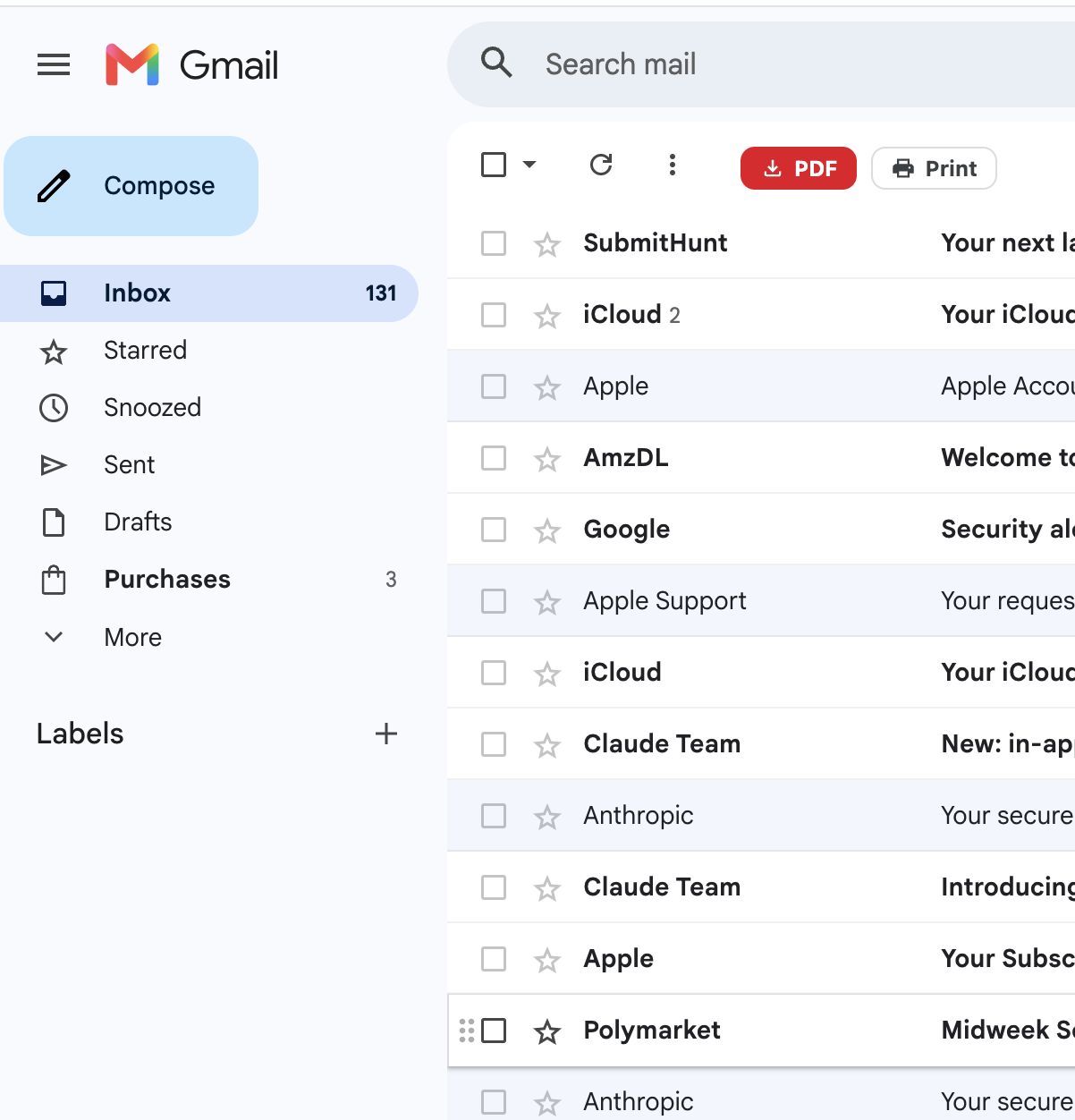
The bulk print Gmail extension runs inside Gmail in Chrome. After you install the Chrome extension to print several Gmail emails at once, a PDF button and a Print button appear in Gmail's toolbar once you check at least one conversation.
Print is the merge path. It does not open twelve print dialogs. It builds one document from the selection, one email per page, then lets you save that PDF or send it to your printer.
Conversion runs in your browser. Message content is not uploaded to our servers to finish the job. That matters if the batch includes invoices, HR notes, or client mail you would not want sitting on someone else's disk.
The extension works with personal Gmail and Google Workspace inboxes. It is an independent tool. It is not affiliated with or endorsed by Google.
What you need
-
Google Chrome on a computer. Batch print is not a phone job.
-
The extension added to Chrome.
-
A Gmail tab reloaded after install.
-
A free allowance of 20 conversions, or a member plan if you print in volume.
A conversion is one email turned into a page or file. A 20-message print job uses 20 conversions.
Step by step
-
Add the extension. Open the bulk print Gmail emails extension and click Add to Chrome. Confirm Add extension. Reload any Gmail tabs that were already open. A PDF icon shows up in Gmail's toolbar the next time the inbox loads.
-
Find the messages. Search or open a label before you select. Useful starting points:
from:vendor@example.com newer_than:1y, a client label, orhas:attachment filename:invoice. Printing whatever sits on the first page of the inbox is how newsletters end up in a legal packet. -
Select the conversations. Check one row, a visible page, or a full batch. The toolbar PDF and Print buttons switch on when the first box is ticked.
-
Click Print, not PDF. PDF downloads one file per email, which is better for filing. Print merges the selection into a single document. Use Print when the next step is a printer or a single packet you will attach to a ticket.
-
Check the merge summary and page setup. The dialog lists which emails went in. Set paper size (A4, Letter, Legal, or a custom size) and orientation (portrait or landscape). Those settings apply to the whole job. If you print US Letter at the office and A4 at home, set it here once rather than fighting the printer later.
-
Save the PDF or print now. Save PDF if you want a file in a case folder first. Print now sends the same merged document to Chrome's print dialog, where you pick the physical printer, copies, and duplex.
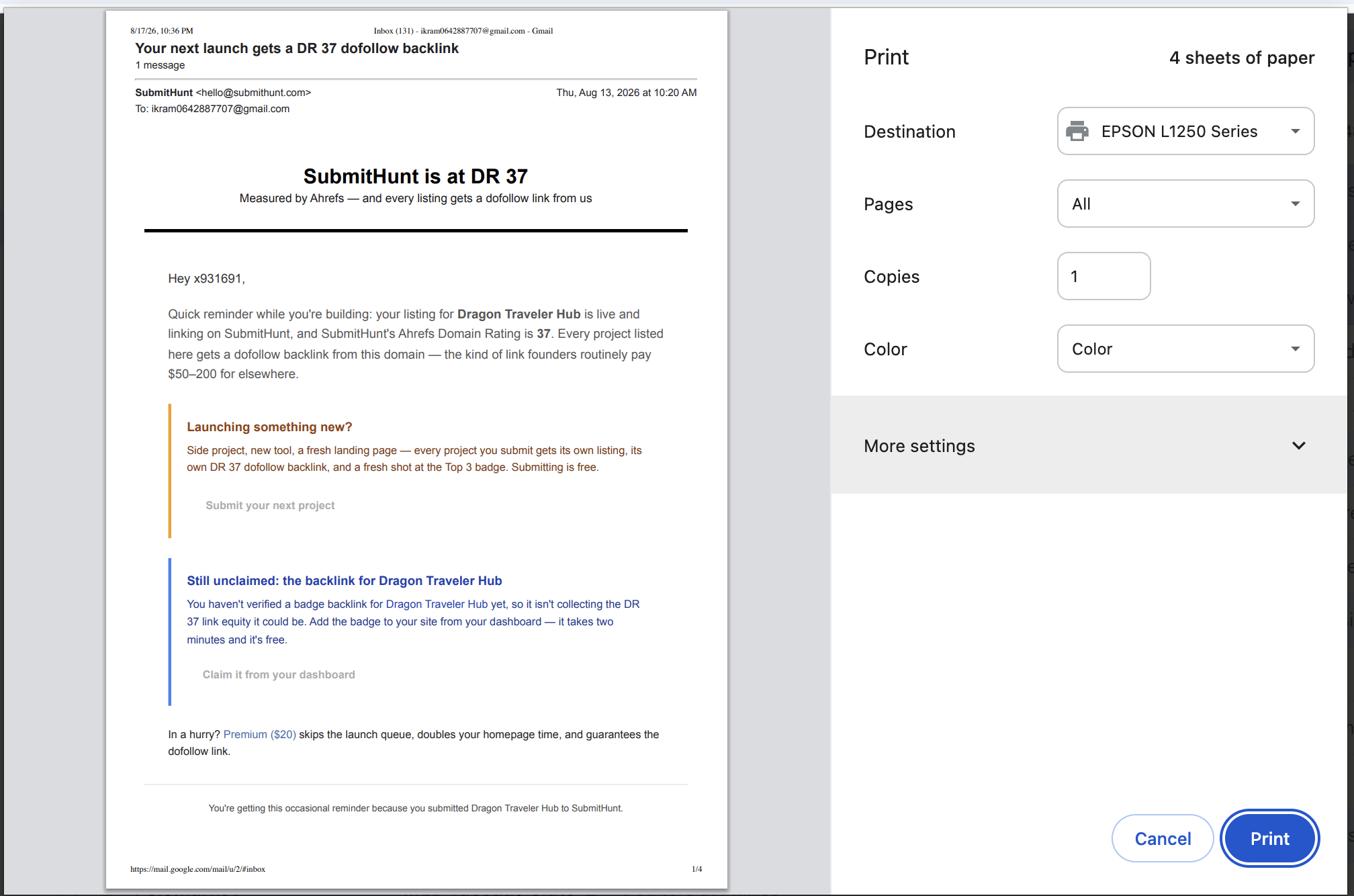
That is the whole loop for how to print multiple Gmail emails at once. After the first run it is usually faster than opening a single thread the old way.
Print versus PDF in the toolbar
People mix these two up, so here is the distinction we shipped:
-
PDF downloads one PDF per selected email, or a ZIP of those files. Use this when you will file by sender or subject.
-
Print builds one merged PDF, one email per page. Use this when you will print on paper or hand someone a single packet.
You can still save the merged file without touching a printer. Print names the merge path because the usual next step is a print job. If you only wanted separate files, stay on PDF. Our guide to saving Gmail as PDF covers that side in more detail.
What a usable merged printout should show
Open the PDF (or the print preview) and check a couple of pages before you send twenty sheets to the tray:
-
From, To, date, and subject on each page
-
The body as Gmail showed it, including inline images
-
One conversation per page, in a stable order
-
The paper size you actually load in the printer
If a page is a cropped screenshot of the reading pane, do not treat it as a record. If you also need the files that were attached to those messages, use the PDF export path and include attachments. Gmail's own print dialog, and a paper printout, will not carry the attached spreadsheet or signed PDF.
Filename, paper, and the next batch
In the side panel you can set a filename pattern from sender, subject, and date, plus paper size and orientation. Those choices stick for the next job. That sounds minor until you have printed the same label three Fridays in a row and every file is still named something like document(14).pdf.
For a weekly vendor packet we use a pattern that sorts in a folder: date first, then sender. For a one-off case file, subject-heavy names are easier to hand to someone else.
When a merged print job is the right tool
Merge-and-print fits when the paper, or the single PDF, is the deliverable. Expense reports that accounting still wants clipped together. A landlord or vendor packet for a meeting. HR or legal review where the reader will annotate on paper. A client handover that should not depend on inbox access.
Skip the merge when you need to file each message on its own, or when only one thread matters. In those cases Gmail's print icon, or the extension's PDF button, is less work.
If the real need is a long-term archive rather than paper, print is the wrong verb. Export PDFs and store them. We wrote a separate guide on how to backup Gmail emails. For a single long thread, see save email chain as PDF.
Method 2: Gmail's built-in print, one conversation at a time
Gmail's printer icon is the official path. Open the conversation, click print, and use Chrome's dialog. Set Destination to your printer, or to Save as PDF if you want a file.
Use it when you are on a computer that cannot install extensions, when you need exactly one thread, or when you are checking how a particular message lays out on paper.
Do not use it as a batch tool. There is no selection-wide print in Gmail. Repeating the dialog is how people lose an afternoon to a label with 40 invoices.
Method 3: print from Outlook, Apple Mail, or another desktop client
If the same Gmail account is already synced to a desktop client, that client may let you select several messages and print. Results vary by app and by how IMAP or the Google Workspace sync is set up. Layout is often different from what you saw in Gmail. Attachments still need a separate step.
This is reasonable if you live in Outlook all day. It is a poor reason to set up a new mail client only to print a Gmail label once.
Privacy and a few limits worth knowing
Before you print a batch of work mail, decide where the file will sit. A merged PDF in Downloads is convenient and easy to forward by mistake. Move it into the folder that already holds that client or matter.
On our side, conversion runs locally in the browser. We do not need the message bodies on our servers to build the PDF. Read the Chrome Web Store listing for bulk Gmail print and our privacy policy if you are installing this on a work profile. Ask your admin if the browser is managed.
Other limits:
-
Desktop Chrome is the supported environment. Phone Gmail can print a single message awkwardly. It will not do this batch flow.
-
Very large selections take longer because each message is rendered. Start with a page of results if you are trying the free allowance.
-
We are not Google. Workspace policies, confidential-mode mail, and account access rules still apply. If you cannot open a message in Gmail, you cannot print it here either.
Pricing if you outgrow the trial: the free plan includes 20 conversions with the same Print and PDF features. After that, Pro is $4.99 a month or $49.9 a year for unlimited conversions. Cancel at any time. Details live on the pricing page.
Frequently asked questions
Can I print every email in a Gmail label at once?
Yes. Open the label, select the conversations you want (or the whole visible set), and click Print. The extension merges that selection. If the label is huge, do it in batches so you can check the first PDF before you print a ream of paper.
Does each email get its own page?
Yes. The merged file is one email per page. That is what keeps a 15-message packet readable on a printer. You do not get four threads stacked on one sheet.
Can I print multiple Gmail emails at once without installing anything?
Only by repeating Gmail's own print icon, once per conversation. There is no built-in multi-select print. If you cannot install extensions, that official path is the one to use.
Will attachments print?
No. A printout is the message. If you need the attached files, use the PDF export and keep attachments with the download, or download them from the thread. Paper cannot hold a spreadsheet in any useful way.
Does this work on Google Workspace?
Yes. Personal Gmail and Workspace accounts both work, as long as you can open the mail in Chrome. Your admin can still block extensions on a managed profile.
Is a printed email a legal record?
For everyday business files, a complete printout with headers is often what people keep. Regulated work may need more (retention rules, hash manifests, e-discovery tools). Ask counsel when the stakes are high. We provide a document. We do not provide a legal opinion.
A short workflow you can repeat
-
Install the extension to print multiple Gmail emails at once once.
-
Search or open the label that actually needs to be on paper.
-
Select the conversations. Skip the newsletters.
-
Click Print. Confirm paper size.
-
Save the merged PDF into the right folder, then print if you still need paper.
-
Spot-check two pages before you walk to the printer.
If you came here for how to print multiple Gmail emails at once, that is the method we use and the method we ship in 2026. Native Gmail print remains the right choice for a single thread. For a batch, merge once, then print once.
Product details, the current free allowance, and privacy notes are on the bulk print Gmail homepage.
Last updated: August 17, 2026 Author: Save Gmail Emails as PDF in Bulk Related: How to save a Gmail email as a PDF · How to backup Gmail emails · Save an email chain as PDF