Complete by construction
A search catches every match — including the email you would have missed scrolling.
An export is only as good as its selection. Use Gmail’s own search to define exactly which emails go out — a sender, a date range, everything with an attachment — and export that set to PDF in one pass.
Rated 4.9/5 by 10,000+ Gmail users · Chrome Web Store
Same extension in the Chrome Web Store and Microsoft Edge Add‑ons. View plans and pricing
Private by design — emails are processed locally in your browser.
If you can write the rule — “from the bank, last year” — Gmail can find the emails and the extension can export them. These are the rules people reach for most.
from:billing@acme.com or from:@acme.com gathers every message from one supplier, client or system.
after:2025/01/01 before:2026/01/01 scopes an export to a tax year, a contract term or an audit period.
label:receipts, has:attachment or subject:invoice narrows the list to exactly the documents a request asks for.
Search, select, export — the search does the hard part.
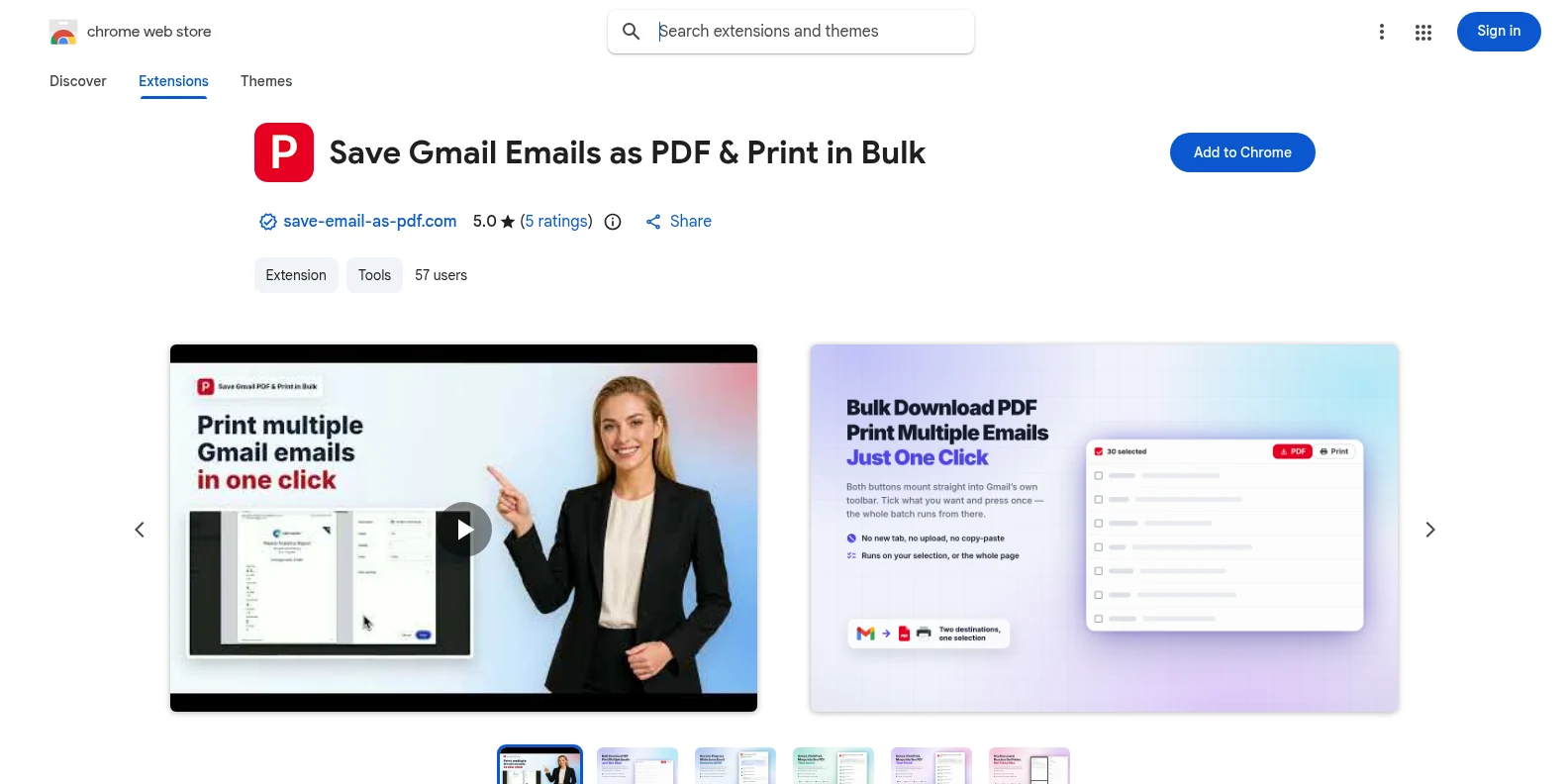
Install it free from the Chrome Web Store or Microsoft Edge Add‑ons, then open Gmail. The PDF and Print buttons appear in Gmail’s own toolbar — no separate app, no account to create first.
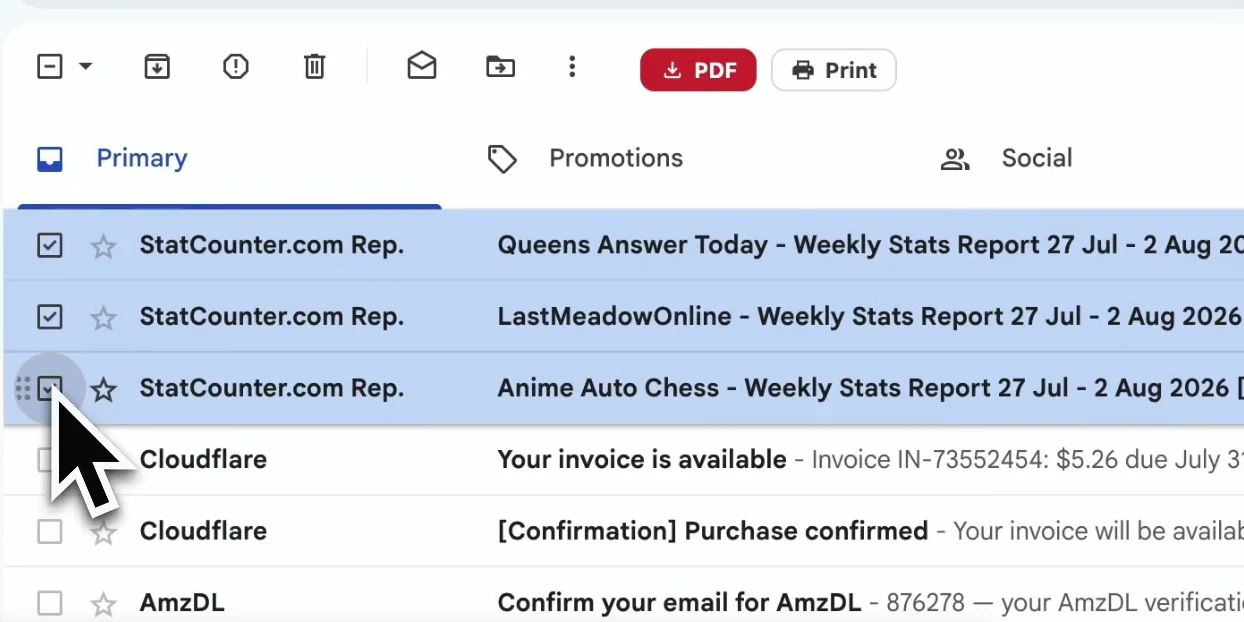
Type a Gmail search, e.g. from:@acme.com after:2025/01/01 has:attachment, then select every result on the page.
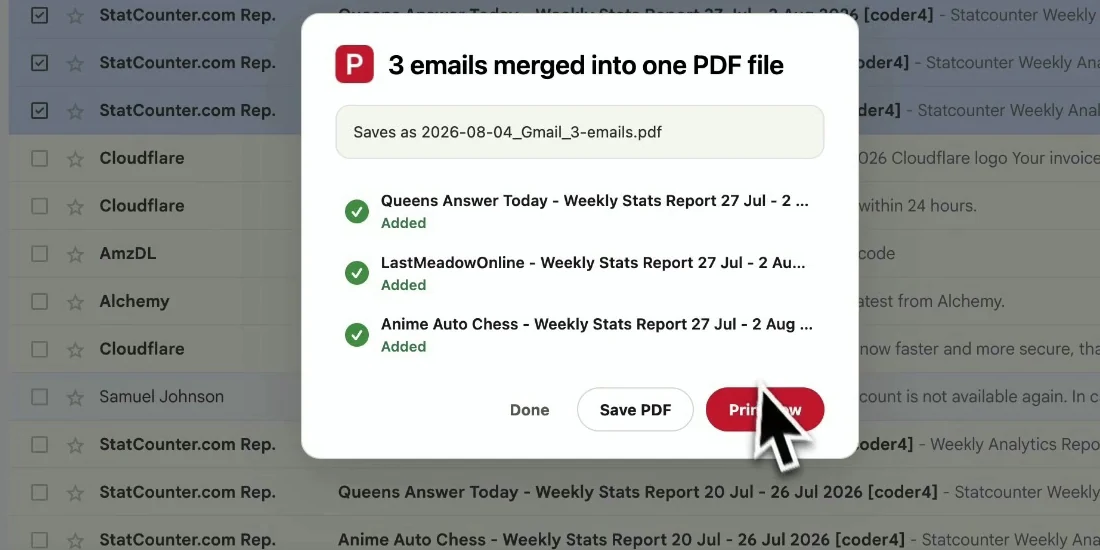
Click PDF to export one file per conversation, or Print to combine up to 50 conversations into a single PDF for whoever asked.
A folder you could hand to an auditor as-is: every email accounted for, in order, named consistently.
Combine any of these in one search. Gmail returns the set; the extension exports it.
| Operator | What it selects | Typical export |
|---|---|---|
| from: | Messages from a person or domain | All correspondence with one client |
| after: / before: | Messages in a date range | A tax year’s receipts |
| label: | Messages under a label | A project or case folder |
| has:attachment | Messages that carry files | Invoices and signed documents |
| subject: | Words in the subject line | Every “order confirmation” |
A search catches every match — including the email you would have missed scrolling.
Run the same search next quarter and get the same kind of export, comparable to the last.
You can state exactly how the set was chosen: the search string is the method.
One search and one click replace an afternoon of opening and printing emails.
Yes. Open the label, select the conversations on the page, and click PDF. For long labels, increase Gmail’s page size to 100 in Settings, or export page by page.
Yes. Search with after: and before:, for example after:2025/01/01 before:2025/07/01, then select and export the results.
Yes. Click Print instead of PDF: up to 50 conversations are merged into one PDF, and Save PDF downloads it as a single file.
Takeout exports a whole mailbox as an MBOX archive that needs a mail program to read. This exports the emails you choose as readable PDFs.
Yes. Install it from the Chrome Web Store for Chrome or from Microsoft Edge Add‑ons for Edge. The features are identical in both; if you use both browsers, install it once in each.
You start with 20 free conversions and every feature unlocked. Pro removes the limit for $4.99/month or $49.9/year.
Export Gmail Emails to PDF in Bulk
Free to start. Installs in seconds, works the next time you open Gmail.