Archiving
Keep a complete, searchable record of a label before you clean up an inbox.
Turn dozens of Gmail emails into a single PDF in one click. No manual printing, no copy-paste, no twenty-minute workarounds.
Rated 4.9/5 by 10,000+ Gmail users · Chrome Web Store
Same extension in the Chrome Web Store and Microsoft Edge Add‑ons. View plans and pricing
Private by design — emails are processed locally in your browser.
Bulk export is for collecting many separate Gmail messages into one deliverable. It is the fastest choice when you already know the set of emails you need.
Export receipts, invoices, support tickets, or project mail that you have already grouped under one label.
Search by sender, date, subject, or Gmail operator, then turn the matching messages into one PDF for an audit or handoff.
Select individual emails across a list when you need a batch record rather than one conversation.
Three clear steps, with no copy-paste or manual printing.
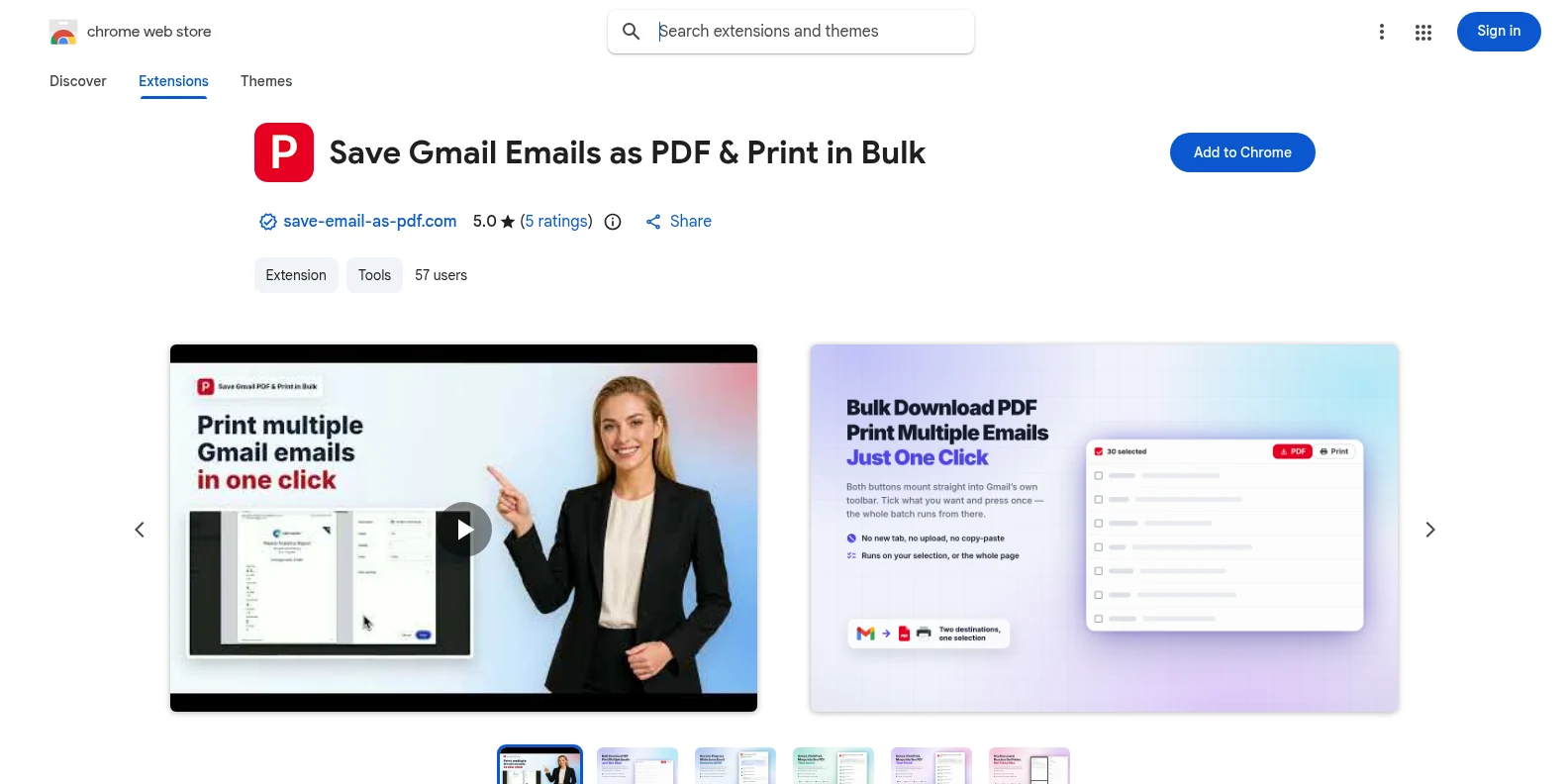
Install it free from the Chrome Web Store or Microsoft Edge Add‑ons, then open Gmail. The PDF and Print buttons appear in Gmail’s own toolbar — no separate app, no account to create first.
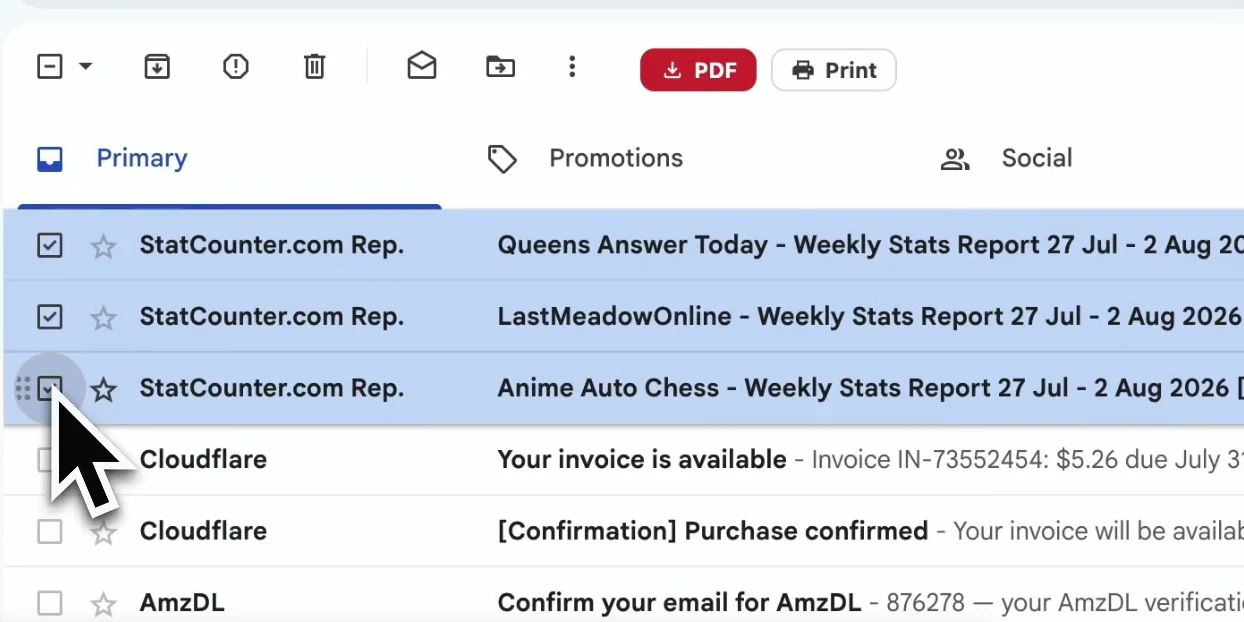
Tick individual messages, or filter by a Gmail label, sender, or search result and select the list you need.
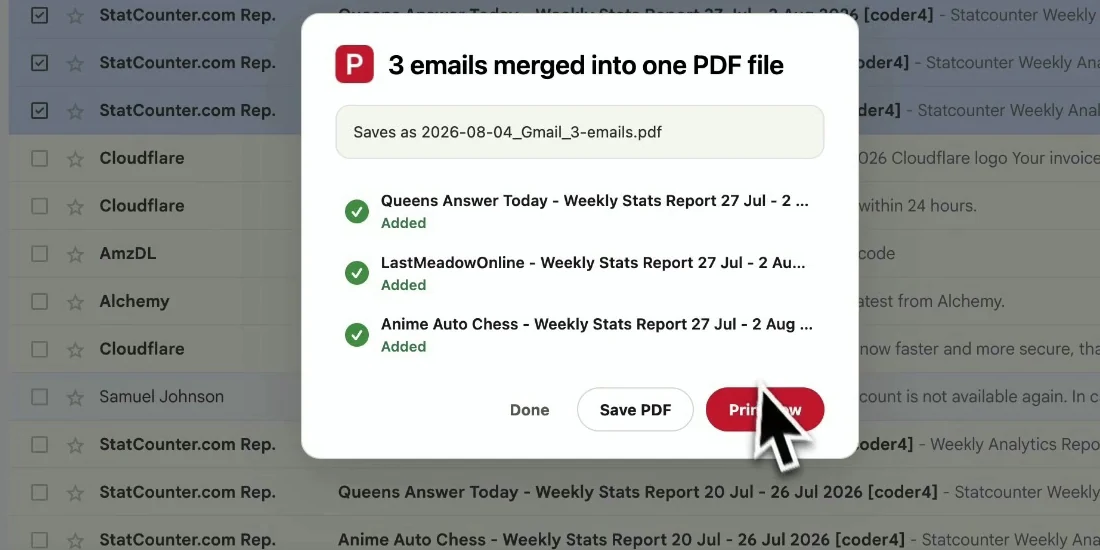
Choose your filename and page settings, then export the selection. The emails are kept in their original order and download directly to your device.
The finished document is ready to archive, share, or print — without losing the context that makes an email useful.
Keep a complete, searchable record of a label before you clean up an inbox.
Send a readable PDF to a client, colleague, or auditor who does not need Gmail access.
Preserve orders, contracts, approvals, and receipts with their timestamps and headers.
Back up important correspondence in one batch before reducing inbox noise.
Yes. You can start with 20 free conversions and try every export feature. Pro unlocks unlimited conversions for $4.99/month or $49.9/year.
Yes. Open a Gmail label, sender view, or search result, select the messages shown, and export that selection as one PDF.
Separate PDFs have no fixed cap beyond what you can select on a Gmail page. Merging into one document takes up to 50 conversations per job. Very large selections take longer because the PDF is generated in your browser.
The PDF keeps the visible Gmail layout, headers, timestamps, and inline images. Attachments are downloaded alongside the PDFs in a ZIP file.
No. The extension generates PDFs locally in your browser. Your email content and attachments are not uploaded to our servers.
No. It is built for Gmail, including personal Gmail and Google Workspace accounts. It works in both Chrome and Edge.
Bulk Export Gmail Emails to PDF
Free to start. Installs in seconds, works the next time you open Gmail.