It opens anywhere
Accountants, courts, landlords and HR systems all take PDF. Few of them take a forwarded email.
Gmail can turn one email into a PDF through its print dialog. Anything more — a label, a search, a hundred receipts — takes an extension. Here is how both ways work, and when each one is the right call.
Rated 4.9/5 by 10,000+ Gmail users · Chrome Web Store
Same extension in the Chrome Web Store and Microsoft Edge Add‑ons. View plans and pricing
Private by design — emails are processed locally in your browser.
A PDF is the format other people and other systems accept: it opens anywhere, prints the same everywhere, and can’t be edited by accident. Turn Gmail into PDF whenever an email needs to leave Gmail.
A booking confirmation or a single invoice. Gmail’s own Print → Save as PDF is fine for this, and the extension does it in one click.
“Every invoice from 2025”, “everything under the Contract label”. Select the list once and convert it in one pass instead of forty.
When the meaning is in the replies, save the whole thread as one document so the order of who-said-what survives.
The same three steps whether you convert one email or a whole label.
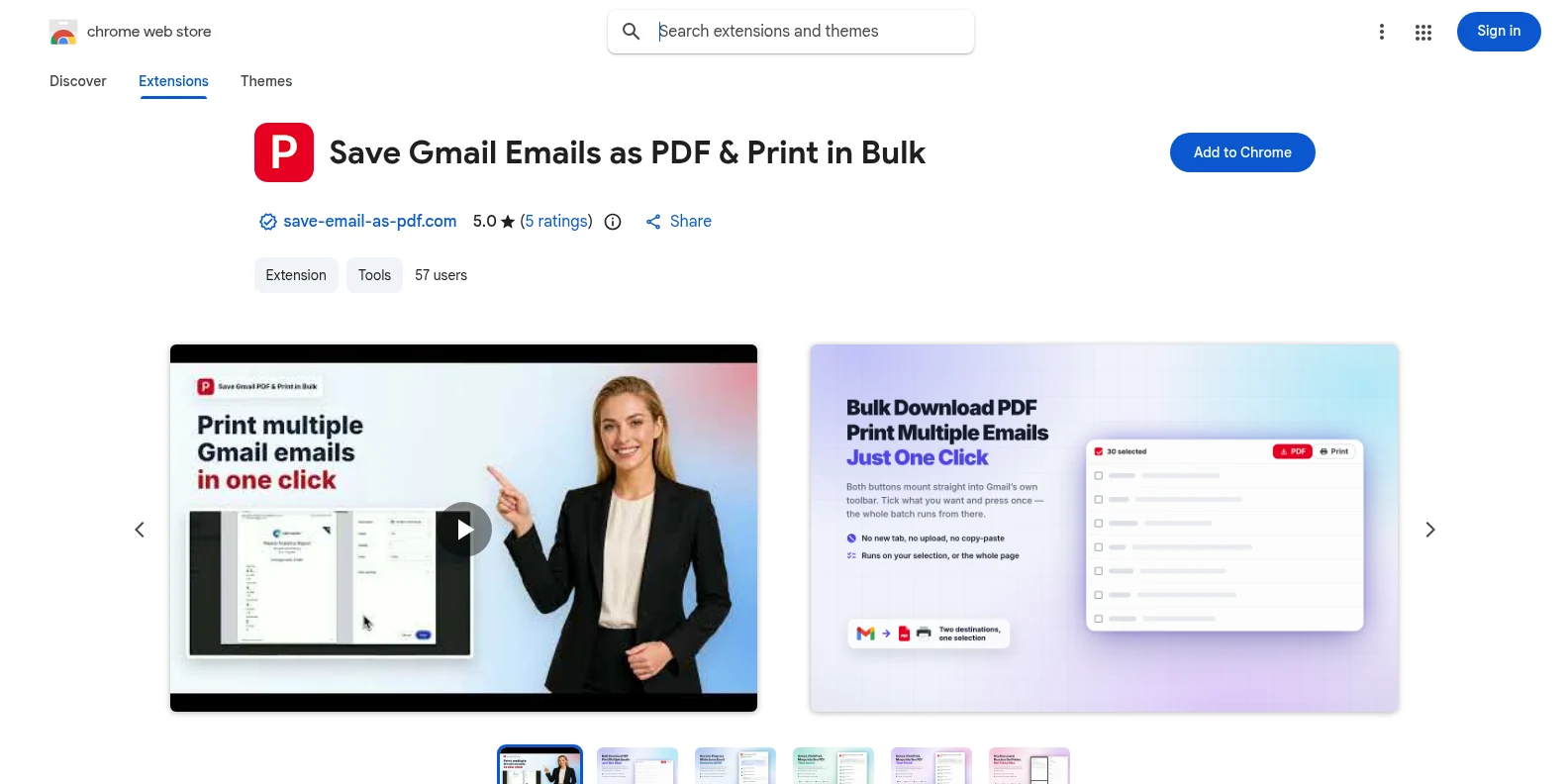
Install it free from the Chrome Web Store or Microsoft Edge Add‑ons, then open Gmail. The PDF and Print buttons appear in Gmail’s own toolbar — no separate app, no account to create first.
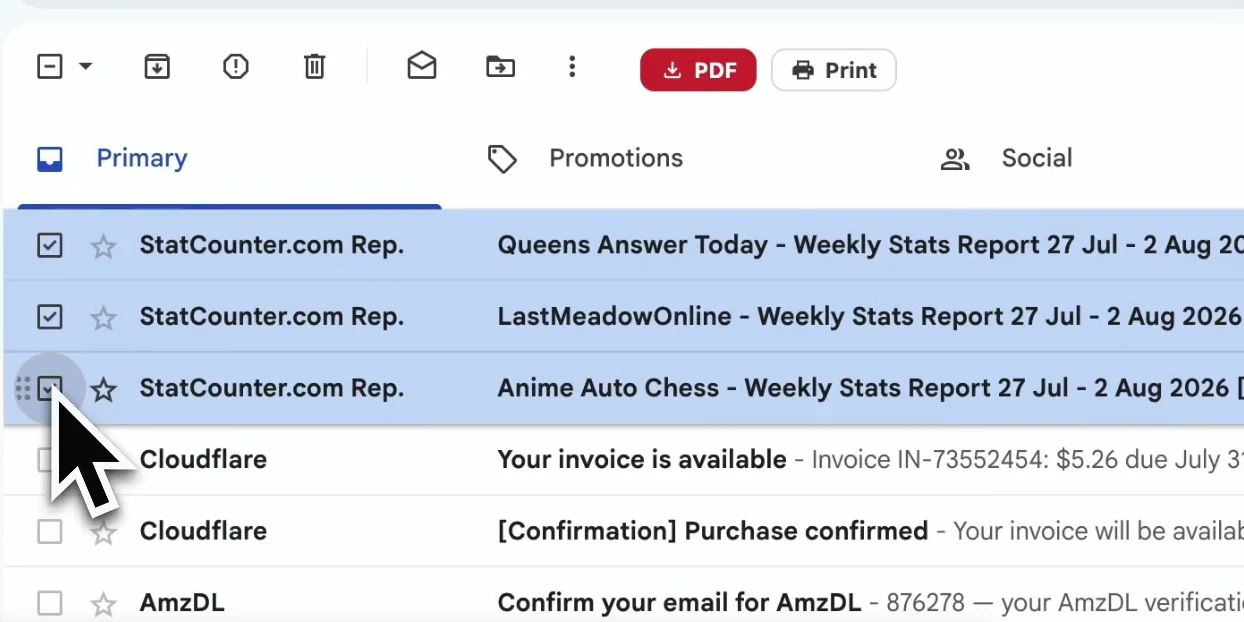
Tick the messages you want, or open a label or search result and select the page. One email works too — just tick it.
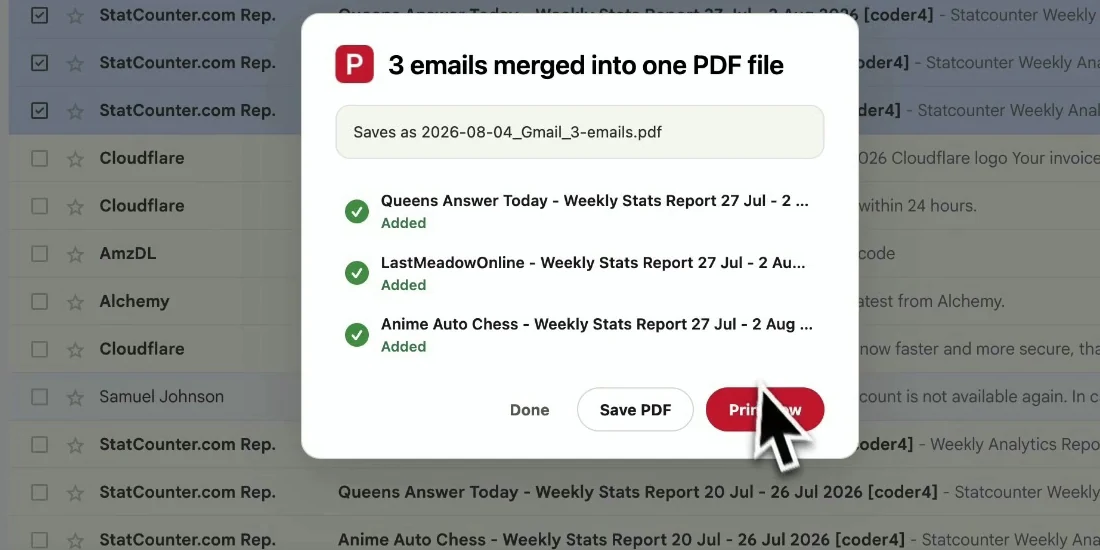
Each selected conversation downloads as its own PDF, named by your filename template. Click Print instead to merge them into one document.
Each PDF is a faithful copy of the email as Gmail displays it — readable by someone who has never seen your inbox.
Gmail’s built-in route is free and works for a single email. The gap shows the moment there is more than one.
| Gmail Print → Save as PDF | Save Gmail Emails as PDF | |
|---|---|---|
| Emails per PDF run | One conversation at a time | Everything you select — separate PDFs, or up to 50 conversations merged |
| File names | Generic, typed by hand each time | Automatic, e.g. 2026-01-15_Acme_Invoice.pdf |
| Attachments | Not included — download each one separately | Saved alongside the PDF in one ZIP |
| Paper size & orientation | Set in the print dialog every time | Set once: A3–A5, B4, B5, Letter, Legal, Tabloid |
| Where the PDF is made | In your browser | In your browser — nothing is uploaded |
Accountants, courts, landlords and HR systems all take PDF. Few of them take a forwarded email.
A PDF is a fixed snapshot. Nobody can edit the thread, and Gmail’s retention rules no longer apply to it.
Leaving a job or a school account? PDFs on your drive keep what matters after the mailbox is gone.
A PDF prints page-for-page the same on any printer, without Gmail’s on-screen clutter.
Yes, for one email: open it, click the printer icon, and choose Save as PDF as the destination. For several emails, attachments, or consistent file names, the extension saves you repeating that per message.
Yes. Select them in the list and click PDF to get one file per conversation, or click Print to merge up to 50 conversations into a single document.
Yes. It works in Gmail for both personal accounts and Google Workspace (work and school) accounts. It does not work with other email providers.
Yes. Install it from the Chrome Web Store for Chrome or from Microsoft Edge Add‑ons for Edge. The features are identical in both; if you use both browsers, install it once in each.
No. The PDF is generated inside your browser from the Gmail page you already have open. Message content and attachments are not sent to our servers.
You start with 20 free conversions and every feature unlocked. Pro removes the limit for $4.99/month or $49.9/year.
Gmail to PDF — Save Your Emails as PDF Files
Free to start. Installs in seconds, works the next time you open Gmail.