Confidentiality
No upload means no third-party copy, no retention policy to read, nothing to disclose.
Most online converters want you to upload your email first. This one lives inside Gmail and converts on your own machine — so the only copy of your mail is the one you meant to make.
Rated 4.9/5 by 10,000+ Gmail users · Chrome Web Store
Same extension in the Chrome Web Store and Microsoft Edge Add‑ons. View plans and pricing
Private by design — emails are processed locally in your browser.
Converting one email is easy. Converting the hundredth one the same way as the first — same paper, same naming, same attachments — is what a converter is for.
Monthly statements, weekly reports, every new invoice: set the format once and each conversion matches the last.
Client, patient or HR email that policy says may not go to third-party servers. Local conversion keeps it on your device.
Document management, e-discovery or bookkeeping tools that expect PDF files with predictable names.
Set it up once; after that, converting is a click.
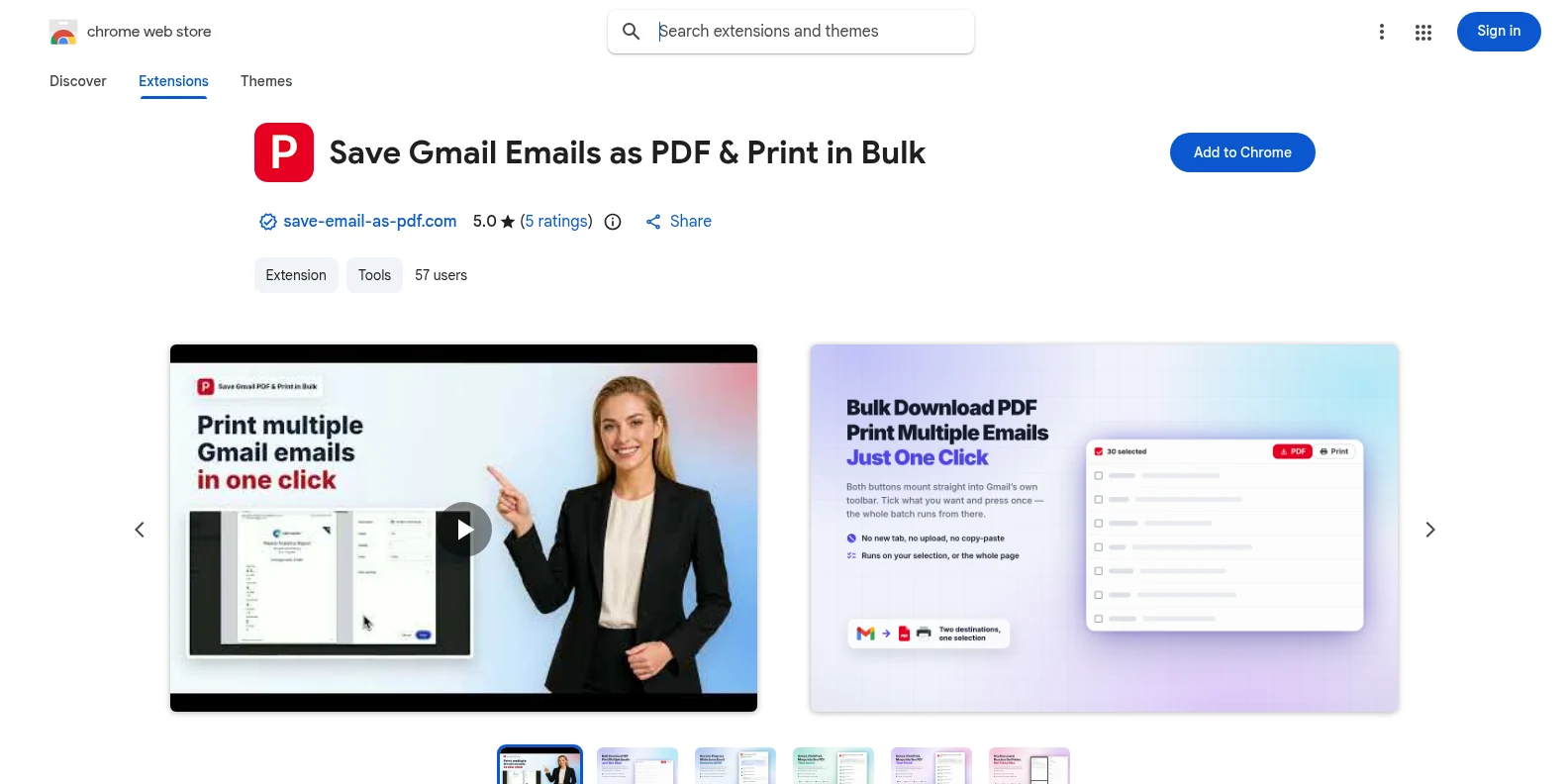
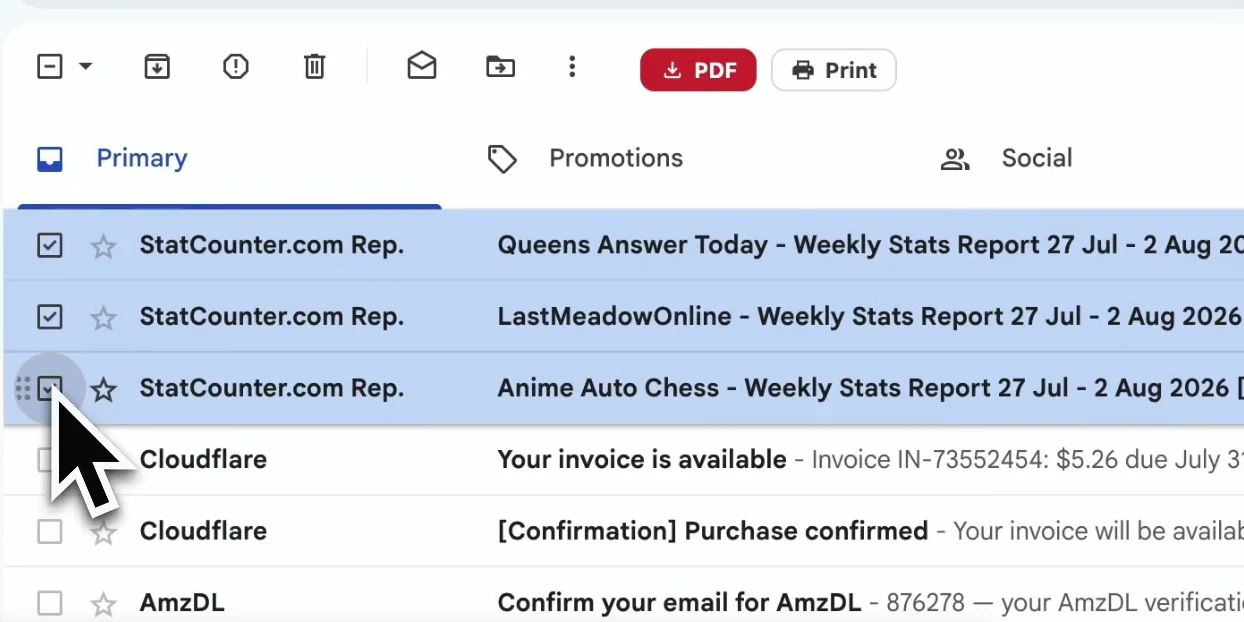
Install it free from the Chrome Web Store or Microsoft Edge Add‑ons, then open Gmail. The PDF and Print buttons appear in Gmail’s own toolbar — no separate app, no account to create first.
Open the extension panel and pick paper size, orientation, a filename template, and whether attachments come along. They apply to every conversion after.
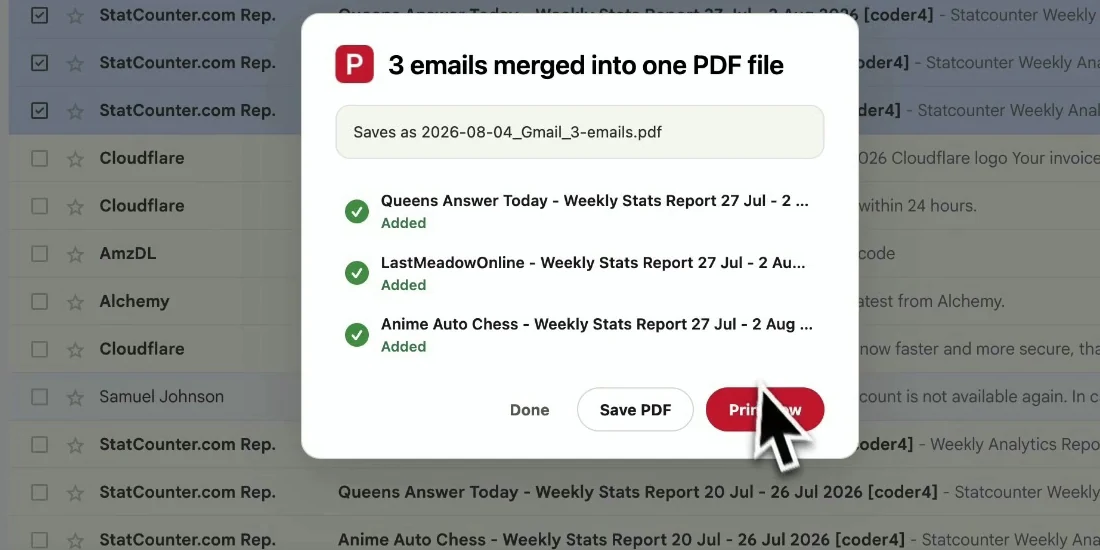
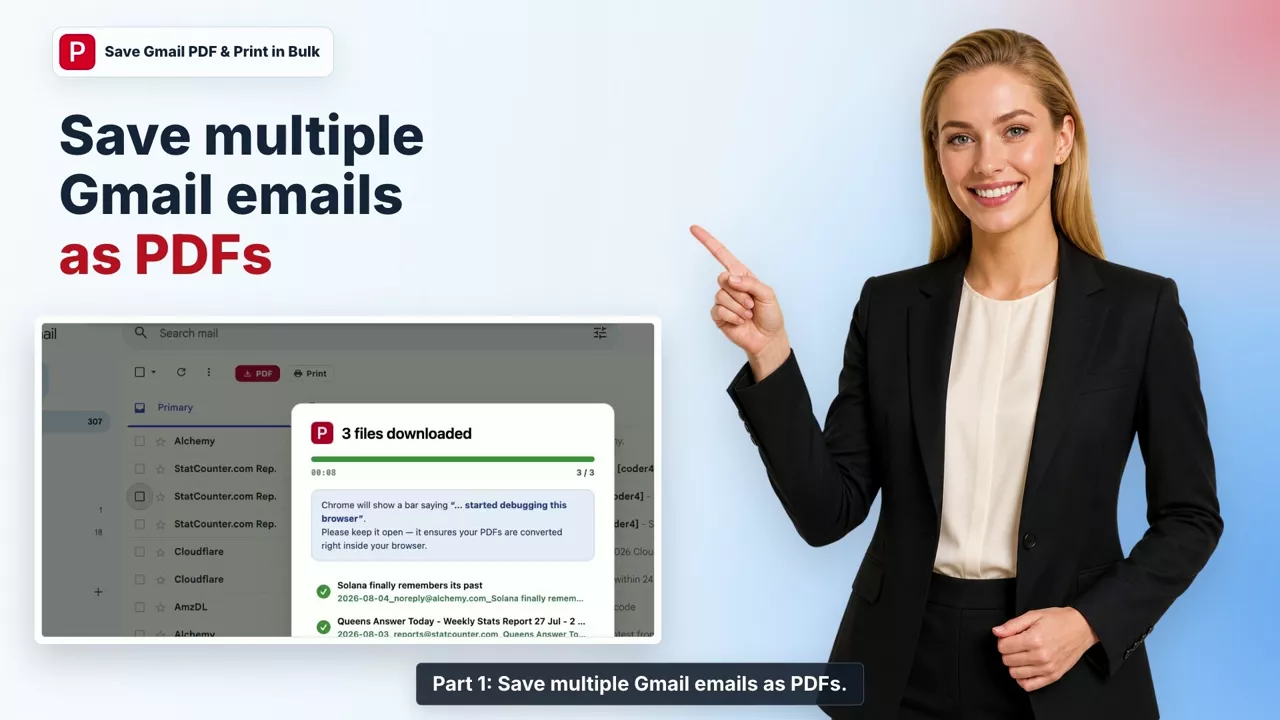
Tick emails, or select a label or search result, then click PDF. Conversion runs in the browser tab and the files download straight to your device.
Clean, print-ready PDFs that look like the email did — without Gmail’s buttons, sidebars or ads around it.
Upload-based converters work by receiving a copy of your email. That is the whole difference.
| Upload-based online converter | This converter (runs in your browser) | |
|---|---|---|
| Where your email goes | To the converter’s server | Nowhere — it is converted on your device |
| Getting email in | Download .eml files, then upload them | Select messages in Gmail directly |
| Many emails at once | Usually one file per upload | Whole label or search result in one pass |
| Attachments | Often dropped | Kept, zipped with the PDF |
| Account access | Some ask for mailbox permissions | Uses the Gmail tab you already have open |
No upload means no third-party copy, no retention policy to read, nothing to disclose.
No upload or download round-trip — conversion starts the moment you click.
Saved settings make every PDF match: same paper, same margins, same naming.
Convert a whole label in one pass instead of feeding a website one file at a time.
No. It is a browser extension that converts inside your Gmail tab. Your emails are never uploaded to a converter website or to our servers.
A3, A4, A5, B4, B5, Letter, Legal and Tabloid/Ledger, each in portrait or landscape.
Attachments are saved in their original format — a spreadsheet stays a spreadsheet — and download in the same ZIP as the email’s PDF.
No. The converter works only in Gmail (personal and Google Workspace accounts).
Yes. Install it from the Chrome Web Store for Chrome or from Microsoft Edge Add‑ons for Edge. The features are identical in both; if you use both browsers, install it once in each.
You start with 20 free conversions and every feature unlocked. Pro removes the limit for $4.99/month or $49.9/year.
Gmail to PDF Converter — Turn Emails into PDF Files
Free to start. Installs in seconds, works the next time you open Gmail.