Save Email Chain as PDF: 4 Options That Actually Work
Four ways to save an email chain as a PDF — a Gmail extension for whole threads and batches, Gmail print, a desktop app, or Google Takeout — and how to pick.
 Dan
Dan
Save Email Chain as PDF: 4 Options That Actually Work
A long email thread is easy to follow while it is still sitting in your inbox. Six months later, when someone asks what was agreed, it is much less useful. Replies are buried, files are scattered, and forwarding a live thread is not the same thing as keeping a record.
That is why people search for save email chain as pdf. The wording may be plain, but the need behind it is not: keep a complete conversation in a form that will still make sense outside your inbox. In practical terms, it means turning one complete conversation — the original message, every reply, the visible headers, and any files you need to keep with it — into a document you can store, share, or put in a case folder. It is useful for client approvals, invoices, landlord correspondence, HR records, project handovers, and any situation where “it was in an email” is not a great filing system.
There are four realistic ways to do it. Before choosing, decide whether you need to save email chain as pdf once, at the end of a project, or as a recurring part of your record-keeping. The methods are not interchangeable. One is built for everyday archiving; the other three solve narrower problems and become frustrating quickly when the thread count climbs.
What does “save email chain as pdf” mean, exactly?
An email chain is the full back-and-forth conversation, not a screenshot of the last reply. When you save email chain as pdf, the result should let a reader understand the story without opening Gmail: who wrote what, when they wrote it, what was quoted below, and which attachments belonged with the discussion.
For a quick personal reference, almost any PDF may be enough. But when you need to save email chain as pdf for a client, employer, or project record, the details are what make the file useful. For work, a cleaner record matters. Look for the sender, recipient, date, subject line, message order, inline images, and a sensible way to keep attachments. A PDF is also easier to name consistently, move to a shared drive, or hand to someone who does not have access to your mailbox.
The short answer: which option should you pick?
| Option | Best for | The trade-off |
|---|---|---|
| Save Gmail Emails as PDF in Bulk extension | Regular saves, whole conversations, and batch exports | Requires Chrome and a one-time extension install |
| Gmail Print → Save as PDF | One email on a computer where you cannot install anything | Repetitive, one thread at a time |
| Desktop mail app | A one-off export from Outlook, Apple Mail, or Thunderbird | Setup, syncing, and inconsistent results |
| Google Takeout | A complete Gmail backup before leaving an account | Produces MBOX, not ready-to-read PDFs |
If you are trying to save email chain as pdf more than once in a while, the extension is the practical answer. It is the only option here designed to save email chain as pdf without turning every export into a small administrative task.
Option 1: Use Save Gmail Emails as PDF in Bulk (the one we recommend)

Our Save Gmail Emails as PDF in Bulk Chrome extension is made for this exact job. It gives you a direct way to save email chain as pdf inside Gmail, so you do not have to print, forward, sync to another app, or hand a sensitive conversation to a third-party conversion site.
The difference shows up after the first few exports. Instead of working through Gmail’s menu and a browser print dialog for every conversation, you select the email or thread, choose the output you want, and download it to your device. The extension can export one message, a complete conversation, or a larger selection from a label, sender, or search result. PDFs are generated locally in your browser; your email content and attachments are not uploaded to our servers.
Illustration 1 — reserve a wide screenshot here: an open Gmail conversation with several replies, the extension’s PDF button visible in the toolbar, and a small export panel showing “PDF,” A4/Letter, orientation, and a filename template. Keep personal names and message text blurred.
How to save a Gmail conversation as a PDF with the extension
-
Install Save Gmail Emails as PDF in Bulk from the Chrome Web Store.
-
Open Gmail, then open the conversation you need to keep. For a larger job, search or filter first — for example,
from:vendor@example.comorlabel:receipts. -
Click the extension’s PDF button. It will keep the replies in the thread together instead of forcing you to capture each message by hand.
-
Choose your paper size, orientation, and filename pattern. A pattern such as
{date}_{sender}_{subject}pays off later when you are looking through a folder of records. -
Export the PDF. It downloads straight to your computer; attachments can be saved alongside the PDF when you need the complete file trail.
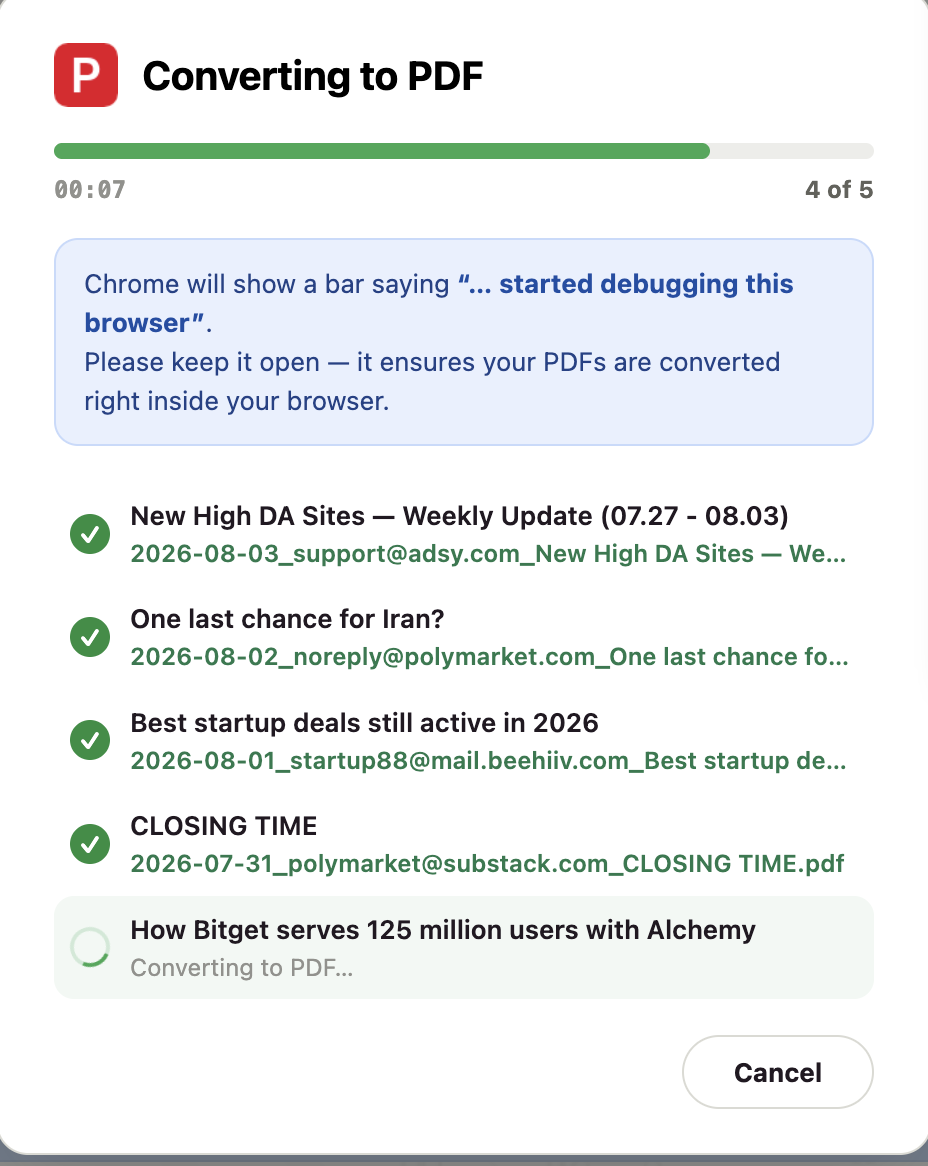
This is what save email chain as pdf should feel like: a short action inside the place where the conversation already lives. No detour through a printer, no awkward copy-and-paste, and no mailbox archive to unpack afterward.
Why it is better for real work
A clean export is only half the value. The other half is repeatability. Once a team needs to save email chain as pdf routinely, consistency stops being a nice extra and becomes the whole point. You can export an entire client thread today, then pull a month of invoices next week using the same settings. Filename templates keep the results sorted the moment they land in Downloads. Paper size and orientation are there when you need them, but they do not get in the way of a quick save.
More importantly, the tool does not pretend that every task is a one-email task. Gmail conversations grow. A project may have 20 replies, a purchase may involve order confirmation, shipping notice, and refund, and an approval often comes after a long chain of changes. Our extension preserves that workflow rather than making you reopen the print dialog for each piece of it.
Illustration 2 — reserve a wide screenshot here: Gmail search results or a label with several related conversations selected, beside the extension’s batch-export panel. Show a filename pattern and the note that files download locally; blur senders, subjects, and attachment names.
If you archive email regularly, this is the option worth keeping installed. You can start with 20 free conversions and use the same export controls when you need a single PDF or a larger batch.
Option 2: Print from Gmail to PDF
Gmail’s built-in Print command is the most obvious fallback. It will let you save email chain as pdf, but the method was designed for printing rather than for maintaining a record. Open the conversation, use the three-dot menu, choose Print, select Save as PDF as the destination, and then name the file.
It works. For one short, unimportant thread, that may be all you need. It is also the sensible choice on a locked-down work computer where adding an extension is not allowed.
The trouble is the amount of handwork. Every time you want to save email chain as pdf, you have to open the thread, find the right menu, wait for the print preview, check that the message expanded properly, set the destination, and save. Then you do it again for the next thread. The browser chooses bland filenames, so there is usually some cleanup afterward too.
Print output can also be unpredictable. Long quoted replies, background colors, and inline images may not look quite like Gmail. Attachments are not turned into part of the PDF; they still need to be downloaded separately. This route is fine in a pinch, but it is not a good system.
Option 3: Sync Gmail to a desktop mail app and export from there
Another way to save email chain as pdf is to connect Gmail to a desktop app such as Outlook, Apple Mail, or Thunderbird, find the conversation there, and use that app’s print or export command.
The basic process is simple on paper:
-
Add your Gmail account to the desktop application using IMAP.
-
Wait for the mailbox and the relevant thread to sync.
-
Open the conversation, then print or export it as a PDF.
This makes sense only if you already use one of those applications every day. If Gmail is where the thread actually lives, taking it elsewhere just to save email chain as pdf adds steps you did not need. If you do not, it introduces a surprising amount of overhead: account setup, two-step verification or app passwords, partial message syncs, duplicate folders, and an unfamiliar conversation view. Some apps flatten the thread differently from Gmail; others make attachments a separate download. You have moved the problem to a new application without making it much faster.
For an occasional Outlook-based archive, it is serviceable. For Gmail conversations that you need to file often, it is a roundabout substitute for a tool that runs directly in Gmail.
Option 4: Download a Gmail archive with Google Takeout
Google Takeout is the right tool when the goal is a full account backup. Go to Google Takeout, select Gmail, create an export, and wait for Google to prepare the archive.
It is not a convenient way to save email chain as pdf. Takeout gives you an MBOX archive, which is a mailbox data file containing everything you selected. It is useful as a backup, but it is not a neat document you can open, annotate, or send to a client. To get a PDF, you still have to import the MBOX file into another program and convert the specific messages you want.
There are other drawbacks: the export can take hours or days, it can be very large, and it is usually more data than you need. Downloading your whole mailbox to keep one approval thread is like moving house because you need one receipt. Use Takeout for disaster recovery or account migration, not day-to-day records.
A few habits that make exported email useful later
Whatever method you use, the PDF is only useful if you can find it again. The quicker it is to save email chain as pdf, the more likely you are to create the record while the context is fresh.
-
Name files consistently. Include a date, sender, and short subject.
2026-08-03_Acme_contract-approval.pdfis much easier to retrieve thanprint.pdf. -
Export at natural milestones. Save the chain when a quote is accepted, a contract is signed, a change is approved, or a dispute is resolved — not only when someone asks for it months later.
-
Keep the original message too when the stakes are high. A PDF is excellent for reading and sharing; original email data may matter in a legal, regulated, or forensic context.
-
Store attachments with the PDF. An approval email without the attached statement of work is not a complete record.
FAQ
Does a PDF include every reply in the conversation?
It should. When you save email chain as pdf, check the exported file before you archive it, especially for a long conversation. With Save Gmail Emails as PDF in Bulk, thread replies are kept together, so you do not need to save each response separately.
Can I save several conversations at the same time?
Yes. This is where the extension pulls far ahead of printing. It is also the reason many people choose it when they need to save email chain as pdf for a whole label or search result. Select a group from Gmail search results or a label, then export the batch with a consistent filename pattern. Gmail’s own Print command makes you repeat the process one conversation at a time.
Is a PDF enough for legal or compliance records?
Often it is a useful readable copy, but requirements differ. Keep sender, recipient, dates, subject line, and the full content visible. If the record could be challenged, retain the original email and ask your legal or compliance team what else is required.
The best way to keep a conversation without the busywork
You can save email chain as pdf with Gmail Print, a desktop app, or Google Takeout. Each has a legitimate use, but none is particularly good at the routine job of turning a live Gmail conversation into a clean file.
For that, use Save Gmail Emails as PDF in Bulk. It is quick, keeps the work inside Gmail, and makes save email chain as pdf a repeatable part of your workflow rather than an interruption. It handles individual threads and batches, gives you filenames you can actually use, and processes the export locally on your device. Once you have used it for a few real-world threads, going back to Print feels like filing paperwork with a typewriter.
If a conversation matters, take the minute to save email chain as pdf while everything is still easy to find.