How to Backup Gmail Emails (3 Methods in 2026)
Learn how to backup Gmail emails the right way: one-click PDF archives with a Chrome extension, Google Takeout for a full mailbox export, and a simple folder system that stays searchable.
 Save Gmail Emails as PDF in Bulk
Losing access to a mailbox is rarely dramatic until the day it is. A closed account, a corrupted label, a laptop that dies the week before tax season — any of them can erase years of receipts, contracts, and client threads. That is why so many people look up how to backup Gmail emails before something goes wrong.
A useful backup is not one giant download you never open again. It is a habit: keep the messages that matter in a format you can open without Gmail, store them where you control the files, and refresh the archive on a schedule. This guide covers the practical options in 2026, with the most time on turning important mail into local PDF files you can actually find later.
If you want the short path first: add our free Chrome tool to Backup Gmail emails, open Gmail, select what you care about, and export PDFs on your own computer. Below is when that is enough, when Google Takeout still helps, and how to keep the archive organized.
Why backup Gmail emails at all?
Gmail is excellent at delivery and search. It is a weaker long-term records system. Messages live on Google's servers under an account you can lose. Labels get renamed. Important threads sit next to newsletters. Attachments disappear from view the moment someone cleans "large files."
You should backup Gmail emails when you need any of the following:
-
Proof you can share offline — contracts, invoices, HR notes, landlord emails
-
A copy that survives account loss — password lockouts, workspace offboarding, domain changes
-
Cleaner compliance files — tax packets, audit folders, case files that expect PDFs
-
A lighter inbox — keep what matters, then archive or delete the rest in Gmail
PDFs are not the only backup format, but they are the one most people can open, print, attach to a ticket, or drop into a shared drive without extra software.
Quick comparison: three ways to backup Gmail
| Method | Best for | Output | Speed | Where it runs |
|---|---|---|---|---|
| Chrome extension (PDF) | Day-to-day backups, labels, batches | PDF or ZIP of PDFs | Seconds to minutes | Your browser |
| Gmail print → Save as PDF | A single one-off message | One PDF | About a minute each | Your browser |
| Google Takeout | Whole-mailbox disaster recovery | MBOX archive | Hours to days | Google export |
Use PDFs for mail you need to keep readable. Use Takeout when you want a full technical dump of the account. Most people need both habits at different times — not one tool for every job.
Method 1 (recommended): Backup important mail as PDF inside Gmail
For everyday archiving, the fastest path is a browser extension that works in the inbox you already use. We built Save Gmail Emails as PDF in Bulk for that job: open mail, pick one message or a whole selection, and download clean PDFs without leaving Gmail.
Why this is the default for most people
-
Local processing. PDFs are generated in your browser. Messages are not uploaded to our servers to finish the export.
-
Bulk backup. Select dozens or hundreds of threads from a label or search and export them in one pass.
-
Readable files. Headers, layout, and inline images stay intact so the PDF still looks like the email.
-
Attachments when you need them. Keep related files with the archive instead of hunting them down later.
-
Names you can search. Patterns with date, sender, and subject beat a folder full of
document(12).pdf. -
Free to start. Try the flow on real mail before you commit to a larger archive job.
If the goal is to backup Gmail emails you might need next quarter — not every newsletter since 2014 — standardize on this method.
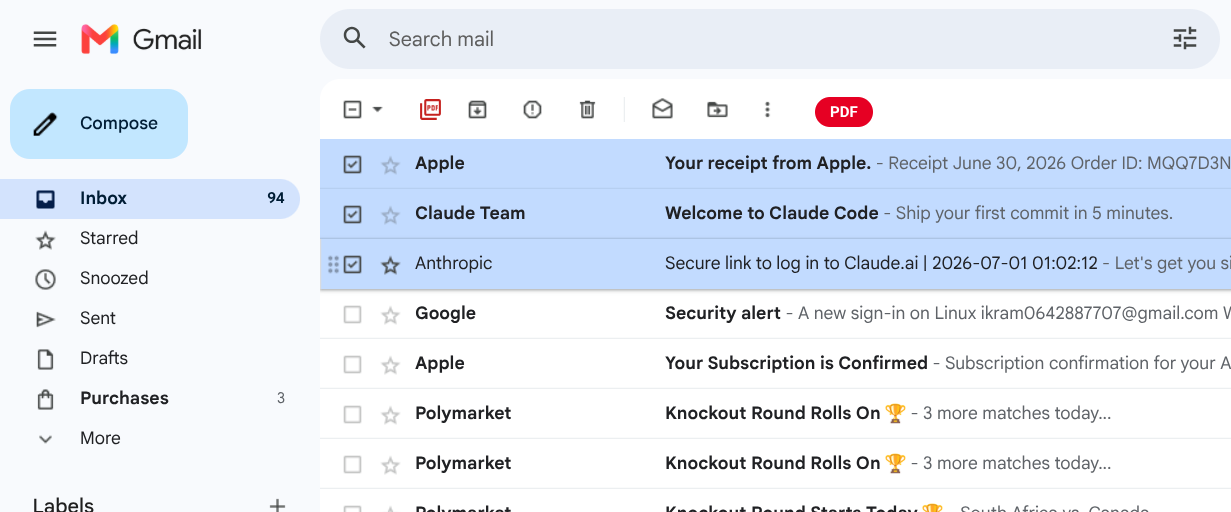
Step-by-step: backup selected Gmail emails as PDF
-
Install once. From the Chrome Web Store, Backup Gmail emails – Chrome extension installs in a couple of clicks. Reload any open Gmail tabs afterward.
-
Use free conversions or a member plan. Free exports work immediately; members get unlimited bulk export in the same UI.
-
Find what you want to keep. Search or open a label — for example
newer_than:1y has:attachment filename:invoice, or a client label. -
Select messages. Check one email, a page of results, or a full batch.
-
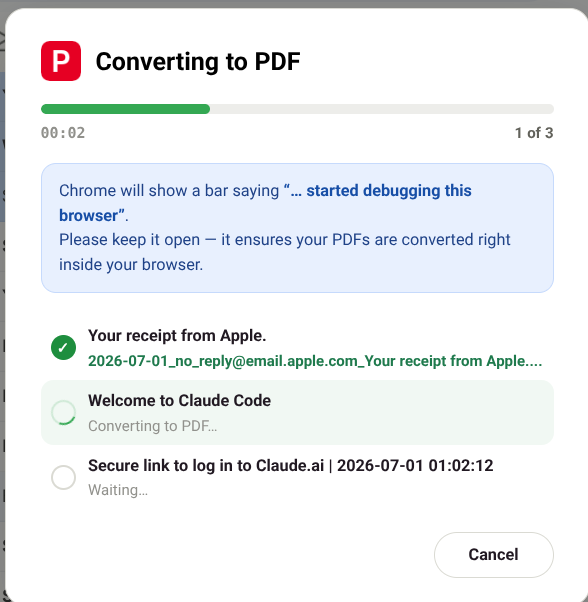
Export. Open the extension action and choose a single PDF, a batch ZIP, or a merged print-style PDF.
-
File the download. Move it into your archive folder (structure tips below).
Once the folder habit exists, that loop is a weekly five-minute job.
What a solid PDF backup should include
Months later, a good file still shows:
-
From / To / Cc and the original date
-
Full subject line
-
Complete body, including quoted history when you export a thread
-
Inline images that were part of the message
-
Attachments either embedded or saved beside the PDF
If a method only gives you a blurry screenshot of the reading pane, it is not a backup.
Method 2: Gmail's built-in Print → Save as PDF
Gmail can print a single conversation. In Chrome, set the destination to Save as PDF and you get a file without installing anything.
Use it when:
-
You are on a locked-down computer and cannot install extensions
-
You need exactly one message, once
-
You are testing whether a PDF is good enough for a recipient
Skip it when:
-
You have more than a handful of messages (there is no real batch mode)
-
You need consistent filenames at scale
-
You want attachments bundled automatically
Print-to-PDF is free and familiar. It is also why people eventually look for a better way to backup Gmail emails after the tenth identical click path.
Method 3: Google Takeout for a full mailbox export
Google Takeout is Google's official bulk export. You can include only Gmail, choose MBOX, and receive a download link when the archive is ready.
Use Takeout when you are:
-
Leaving Google Workspace or closing an account
-
Creating a cold disaster-recovery copy of everything
-
Migrating into another mail client that imports MBOX
Understand the limits:
-
Output is MBOX, not a folder of human-friendly PDFs
-
Jobs can take hours or days on large accounts
-
You cannot cleanly export "just these twelve invoices" as polished documents
-
You still need another tool if stakeholders expect PDFs
Think of Takeout as insurance for the whole account. Think of PDF export as the working archive you actually open. Many teams run Takeout once or twice a year and keep continuous PDF export for operational mail.
A simple folder system for Gmail PDF backups
Files only help if you can find them. After you backup Gmail emails, drop them into a layout like this:
Gmail-Backup/
├── 2026/
│   ├── 01-January/
│   ├── 02-February/
│   └── ...
├── Clients/
│   ├── Acme-Corp/
│   └── Northwind/
├── Finance/
│   ├── Invoices/
│   └── Receipts/
└── Legal/
Naming pattern that ages well:
YYYY-MM-DD_sender_subject.pdf
Example: 2026-08-09_Jordan_Lee_Q3_Statement_of_Work.pdf
Sync the root folder to storage you already trust — OneDrive, Drive for desktop, Dropbox, or an encrypted external drive. The point is that the backup lives in your hierarchy, not only inside Gmail search.
How often should you backup Gmail emails?
| Situation | Cadence |
|---|---|
| Freelancer / solopreneur | Weekly export of new client + finance mail |
| Small team shared inbox | Daily or per-project milestone |
| Tax / legal sensitive mail | Same day the thread closes |
| Full account disaster copy (Takeout) | Quarterly or before major account changes |
Consistency beats volume. A weekly 20-message PDF batch beats a once-a-year dump you never verify.
Security and privacy checklist
Before you trust any path to backup Gmail emails, check:
-
Where conversion happens — browser-local is preferable for sensitive threads.
-
What permissions an extension requests — read the store listing and privacy policy.
-
Where files land — Downloads is fine temporarily; move them into an access-controlled folder.
-
Who else can open the archive — encrypt drives used for legal or HR mail.
-
Retention rules — some industries require keeping mail for N years; others require deletion. Align backup with policy, not only convenience.
Our extension is built so export stays on-device. Features, pricing, and privacy notes are on the Save Gmail Emails as PDF in Bulk homepage.
Frequently asked questions
Is backing up Gmail to PDF legally valid?
Often yes for everyday business records, provided headers and content are intact and storage is controlled. Regulated environments may need extra controls. Ask counsel when the stakes are high.
Can I backup only one label?
Yes. Open the label in Gmail, select the conversations, and export with the extension. That is usually smarter than dumping All Mail.
Does Google Takeout replace PDF backup?
No. Takeout is a full-account export format. PDFs are for human-readable archives and sharing. Use both for different jobs.
Can I backup Gmail emails on my phone?
Mobile Gmail can print individual messages awkwardly. Serious batch backup still happens on desktop Chrome with an extension.
Will backup stop if I hit Gmail storage limits?
Storage problems can block new mail; they do not remove the need for an external copy. Export critical labels early if you are near quota.
Recommended workflow
-
Create the
Gmail-Backupfolder structure once. -
Install the extension from the steps above.
-
Every Friday, search
newer_than:7dplus your finance/client labels. -
Batch-export new keepers to PDF and file them by month or client.
-
Once a quarter, run Google Takeout for a cold full-mailbox copy.
-
Spot-check a few PDFs so you know the archive actually opens.
That routine is enough for most people who searched how to backup Gmail emails because they want a calm process, not an enterprise migration.
Next steps
Start with the mail you already know you must keep. Export a small batch today, file it, and only then schedule a full Takeout if you need disaster recovery. For product details and plans, see Save Gmail Emails to PDF official site .